JDNEER Themes Brings Soft Dark Modes to FreeScout, One User at a Time
JD's JDNEER Themes 1.0.0 gives every FreeScout user their own soft dark theme: Slate, Graphite, Nord, Mocha, or Auto to follow the system. Light stays the default and untouched, admins can set a default, and theme choices live in the module's own table.
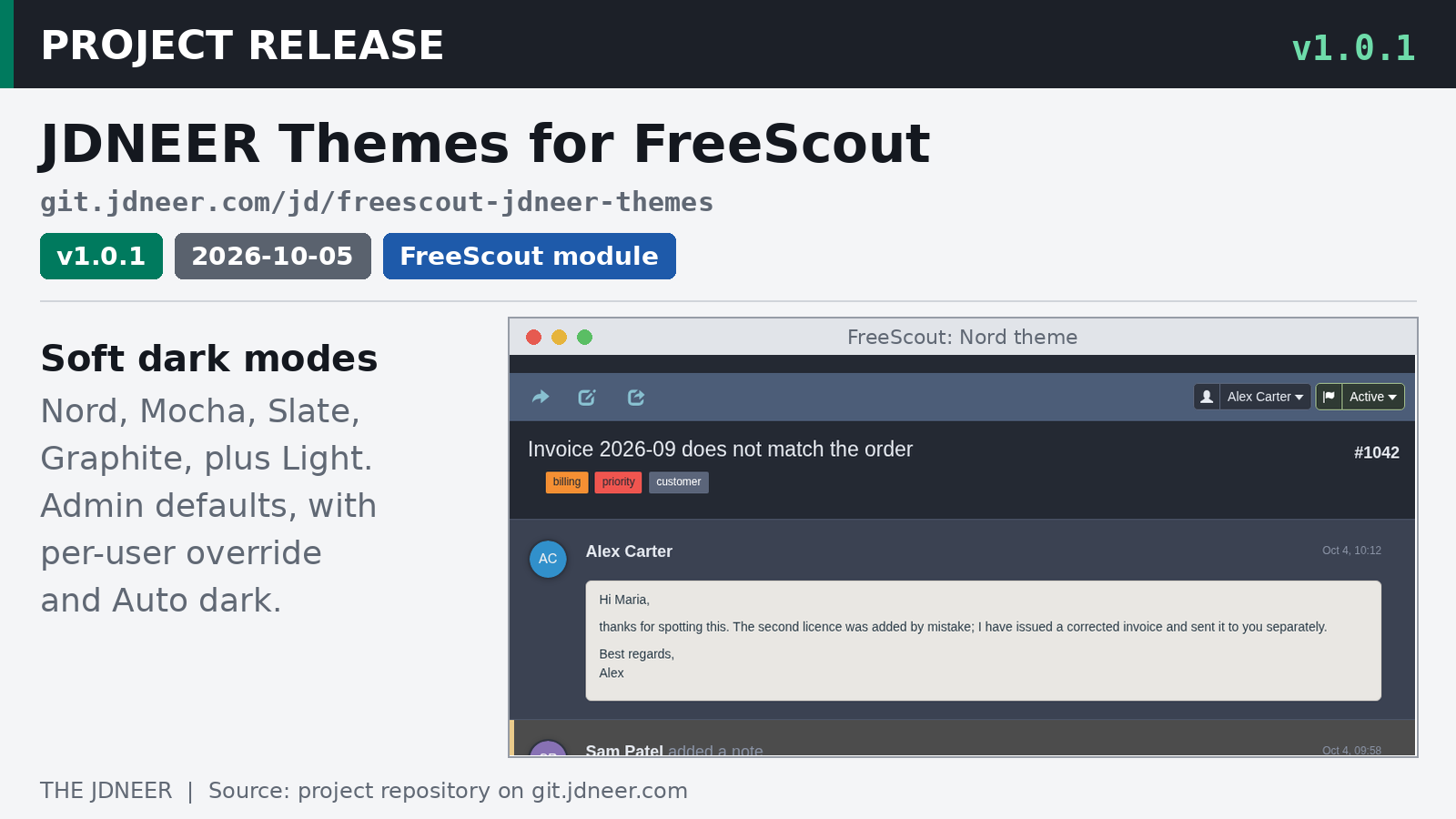
Anyone who spends long days in a help desk knows what a bright white screen feels like by evening. JD's new module for FreeScout, JDNEER Themes, gives every FreeScout user their own soft dark theme. Version 1.0.0 arrived on October 5 (changelog).
The idea is simple. Light stays FreeScout's default and is left completely untouched. Nothing changes for anyone until they pick a theme, and users who stay on Light don't even load the theme stylesheet. Everyone else gets four dark themes to choose from: Slate, Graphite, Nord and Mocha. There is also Auto, which follows the operating system and switches to a chosen dark theme when the computer goes into dark mode (README).
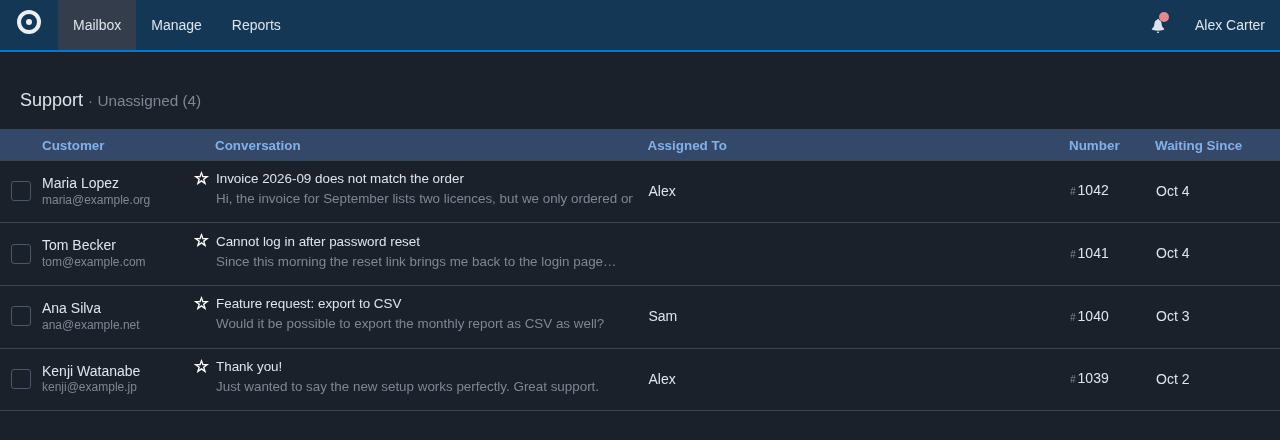
Every agent picks their own
Each user sets a theme under Profile, Appearance, and the page shows live previews before anything is saved. Admins can set the defaults for everyone under Settings, Appearance, covering the default theme, Auto dark, the theme accent and dark mail, and the default theme is also used on the login page. Each user can still override any of these for themselves under Profile, Appearance (changelog).
Two options sit next to the theme picker, both off by default. Out of the box, the dark themes take their brand color from FreeScout's own Header Color setting, which gives a tinted navbar, a brand line and brand-colored buttons. A switch lets users take the theme's own accent instead. The second option shows email bodies in theme colors too. By default, messages sit on a dimmed light card, so HTML emails keep the look their senders intended (README).
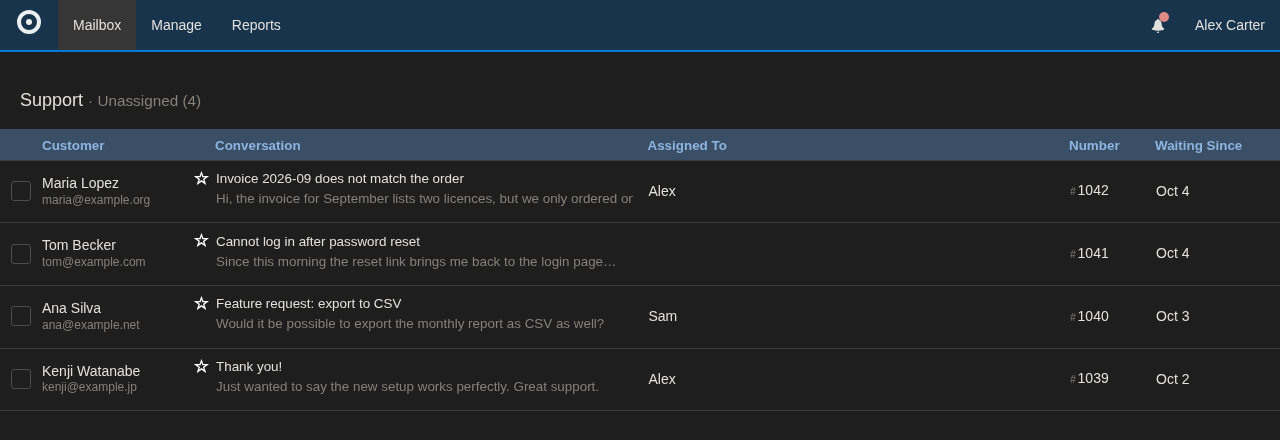
The details that make dark mode work
A dark theme is only as good as its worst corner, and JD paid attention to the parts that usually break. Notices, notes, quoted mail, blocked image placeholders, module cards and the notification bell all get readable dark styling, and notes keep a warm orange tint so they still stand out. Tags with bright colors get dark text, so every tag stays readable. The signature preview always shows Light colors, because that is how recipients will see it (changelog).
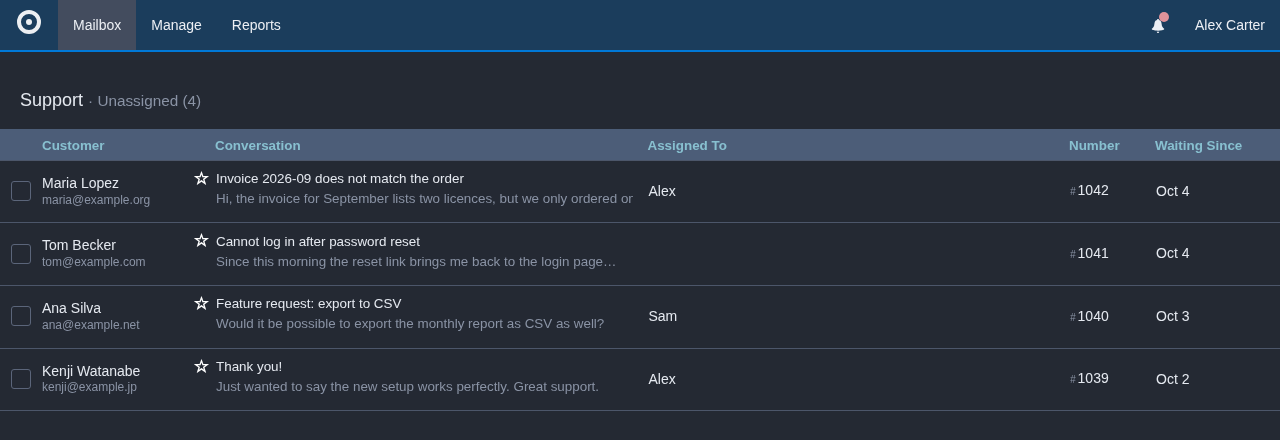
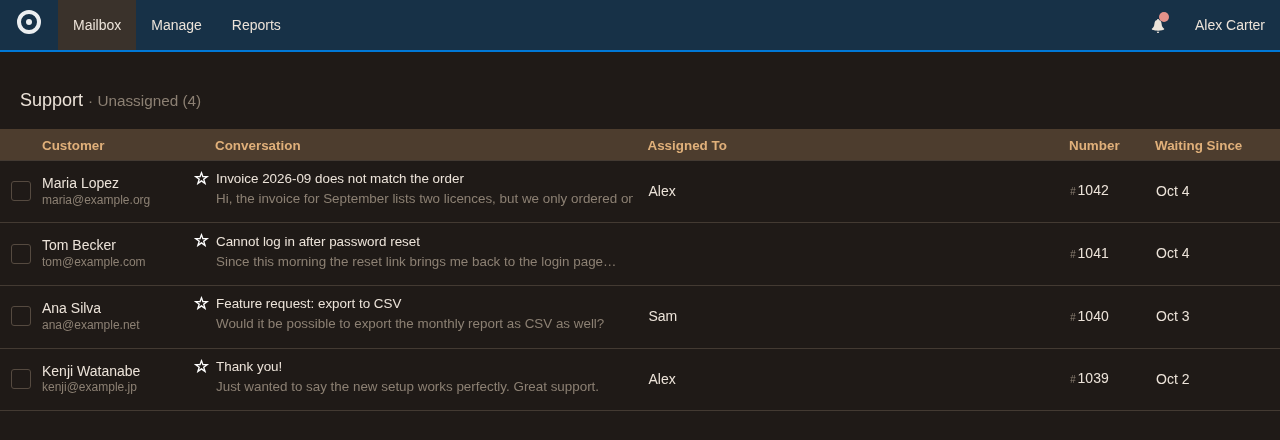
The themes are not hand-painted guesses. A small generator builds them from FreeScout's own stylesheets, pinned to a specific FreeScout release and checked against SHA-256 hashes, and the build fails if it meets a color it can't map or a combination that misses its contrast checks. The mockups shown here are rendered the same way, from FreeScout 1.8.244's stylesheets with invented data (README).
Installing it
JDNEER Themes needs FreeScout 1.8.0 or later, is tested with 1.8.244, and needs a browser with CSS color-mix() support, which any current browser has. Installing means downloading the zip and its SHA256SUMS file from the repository's releases, checking the download, unpacking it into FreeScout's Modules folder, handing the folder to the web server's user, and activating JDNEER Themes under Manage, Modules (README).
The module stays out of FreeScout's data. Theme choices live in its own table, and nothing in FreeScout itself is modified (changelog). Deactivating it puts everyone back on Light right away, and reinstalling brings everyone's choices back. The generator and theme sources are MIT licensed, while the generated stylesheets, being derived from FreeScout's own CSS, ship under the AGPL v3 like FreeScout itself (README).
Update: Version 1.0.1 followed on October 15. The themes are unchanged; the module simply moved from a shared bundle into its own repository, so updating is optional and touches no data (release notes). Its former bundle mate, Conversation Relations, got its own home at the same time.